Salary Review Lure: QR Code in a Word File Ends at Microsoft's Device Code Page
Microsoft reported an August 2026 campaign that sent legal organisations a Word file with a QR code, a fake OneDrive page and then the real Microsoft device code page. The last step is genuine Microsoft, so there is no password to steal. Here is how it works and how to stop it in the browser.
An email arrives with almost nothing in it. Attached is a Word file about your salary review, and inside the file is a QR code. You scan it with your phone, and a few taps later you are typing a short code into a genuine Microsoft sign in page.
That is the campaign Microsoft Threat Intelligence described on 5 November 2026 in its Q3 email threat landscape report. It is worth your time because the page where the code is typed is real Microsoft, so there is no password for the attacker to steal and no lookalike domain at that last step.
What happened
Microsoft reports that an August 2026 campaign targeted legal organisations with personalised salary review documents and QR codes, leading recipients into device code phishing. It happened despite the broader decline in QR code attacks.
AegisAI Threat Watch published its own analysis of the campaign on 6 November, using Microsoft's data. According to that write up, the emails were sent over about 13 hours, from 13:27 UTC on 19 August to 02:59 UTC on 20 August 2026. They reached more than 10,000 users at more than 4,800 organisations, almost all of them in the United States. Professional services, specifically law firms and legal organisations, made up 72.1 percent of intended targets, and technology and software 22.5 percent. These figures describe who was targeted. No number of compromised accounts has been reported.
The timing matters. Microsoft's report shows QR code phishing ended Q3 far below the levels of its early 2026 surge, with roughly 12.1 million attacks in the quarter, down 67 percent from Q2. The technique is less common than it was, yet this campaign used it anyway and paired it with a method that does not need a convincing fake login page.
How the attack works
Device code sign in was built for devices that cannot show a proper login page. The device asks Microsoft for a code, the user enters it on a Microsoft page, and the device is signed in as that user. In this campaign the attacker's phishing page plays the role of the device.
- The attacker asks Microsoft for a code first. Microsoft describes the phishing page making an authentication request to its device authentication service before the recipient arrived, receiving a user code, and embedding that code in the page.
- The lure arrives. The message has the subject "Salary Review" and no visible body text. The only content is a Word attachment made to look as if it came from the recipient's employer, with the recipient's name and a QR code offered as the way to see the details.
- A fake OneDrive page shows the code. Scanning the QR code opens a page that impersonates a OneDrive sign in portal. It shows the code, tells the visitor to copy it and continue, and runs a countdown timer.
- The victim enters the code on the real Microsoft device login page. The page is genuine, so the address bar is genuine too.
- Microsoft hands the session to the attacker. Microsoft says completing the sign in would have transferred a valid session token with persistent access to the Microsoft 365 account, without exposing the password and without triggering MFA again.
Microsoft's indicator table lists wekash[.]net as the sender domain and splace[.]co[.]za as the host of the fake page, both seen on 19 and 20 August 2026. Treat them as hunting leads, not as a complete picture. Infrastructure for this kind of lure changes quickly.
Why it works
Most of the usual defences look for something that is wrong. Here, very little is.
- The link is not in the email text. Microsoft explains that the QR code moved the phishing URL out of the email body and into an image, bypassing email gateway controls.
- No credential page to flag. The only page that completes the sign in belongs to Microsoft, and the fake OneDrive page never asks for a password.
- MFA does not help. The user signs in properly, and the session token that results ends up with someone else.
- The scan happens on a phone. Microsoft notes that QR codes can move a user from a message on a managed device to a phishing page on a personal phone.
- The lure is familiar. Microsoft's conclusion is that familiar business requests remained effective lures in Q3. A salary review is a document people want to open.
What to do
Start with the step that does not change. Whatever the lure looks like, the attack needs someone to enter a code on Microsoft's device login page.
- Decide whether you need device code sign in at all. If you do not, block it with Conditional Access in Microsoft Entra. Microsoft Learn recommends auditing current use first and running the policy in report only mode before enforcing it. Exclude your emergency access accounts.
- Check your sign in logs. Look for device code authentications from users who have no reason to use them, and match each one against a recent message that carried a QR code or an unexpected HR document.
- Tell staff one simple rule. An HR message that asks you to scan a code and then type a code into a Microsoft page is not a normal way to open a file. Report it.
- Treat a QR code as a link. Decode QR codes in images and attachments, including Word files, and judge the destination like any other link.
- Protect your most important accounts. Require phishing resistant MFA for privileged accounts through Conditional Access, and revoke sessions and tokens, not just the password, if someone did enter a code.
Stopping the step, not the lure
This month the wrapper is a salary review in a Word file. The wrapper will change. The step the attacker needs does not.
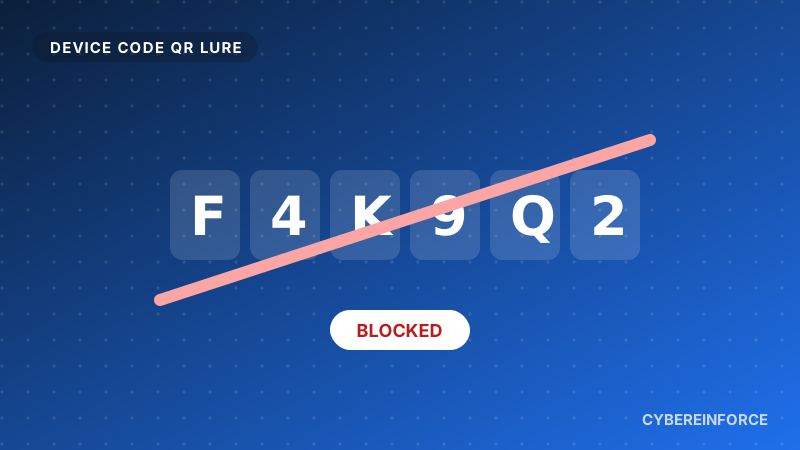
Cybereinforce blocks Microsoft's device code sign in page in the browser, by default, for every customer. It does not matter whether the code came from a QR code in a Word file, a link in a chat or a message on a phone. The page does not open for the user, and the code the attacker requested expires unused.
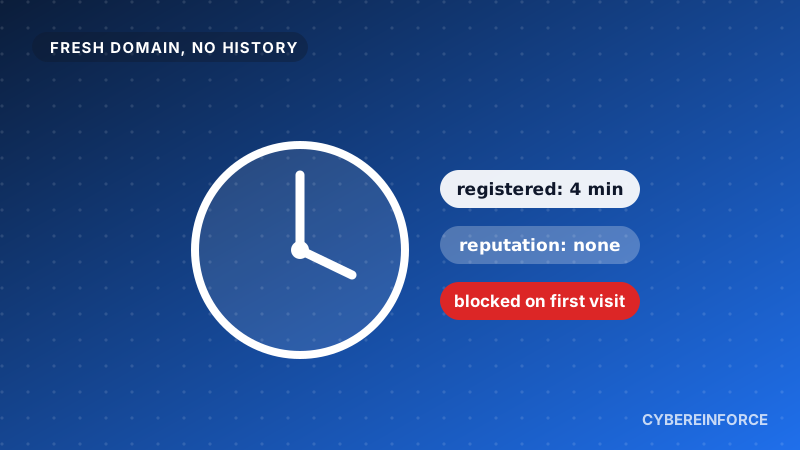
Lure infrastructure on fresh domains is covered as well. A new domain gets no free pass in the browser, which is why the device code block is only one layer of the protection.
How you would be protected with Cybereinforce
- A device code attack cannot succeed in your browsers.* The sign in step is blocked before the victim can type the code, whichever lure delivered it. That covers a QR code in a Word file just as well as a link.
- Nothing to configure. The protection is applied by the platform to every organisation from the first day. It does not use up any of your rule allowance, and nobody can delete it by accident.
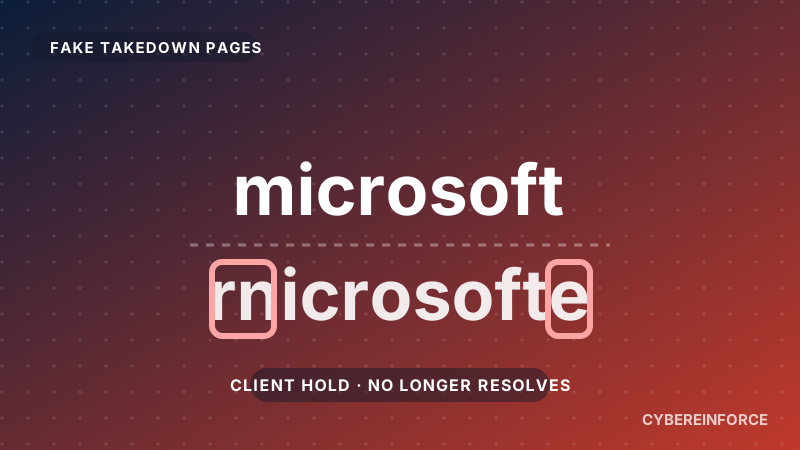
- Copycat pages are covered too. Fake device login pages hosted on other domains are caught by our brand lookalike detection and our new domain protection. A domain registered in the last six months is blocked in the browser, and one between six and twelve months old shows a warning.
- You see who was targeted. Every blocked attempt is logged with the user and the reason, ready for Microsoft Sentinel, so a lure that reached your staff becomes something your SOC can investigate.
- You stay in control. If a team ever has a genuine need for device code sign in in the browser, an administrator can allow that exact page.
* In browsers protected by Cybereinforce: Chrome, Edge, Firefox and Safari on Windows, macOS, iPhone and iPad. Administrators can allow legitimate device code sign ins for their organisation.